FolderIco comes with a number of pre-installed icons to assign to your folders, but if you want more, you can always import a new icon library or even create your own.
Import an icon library to FolderIco
To import a library with icons to the program, open the main window of FolderIco. Click the Import button in the header section.
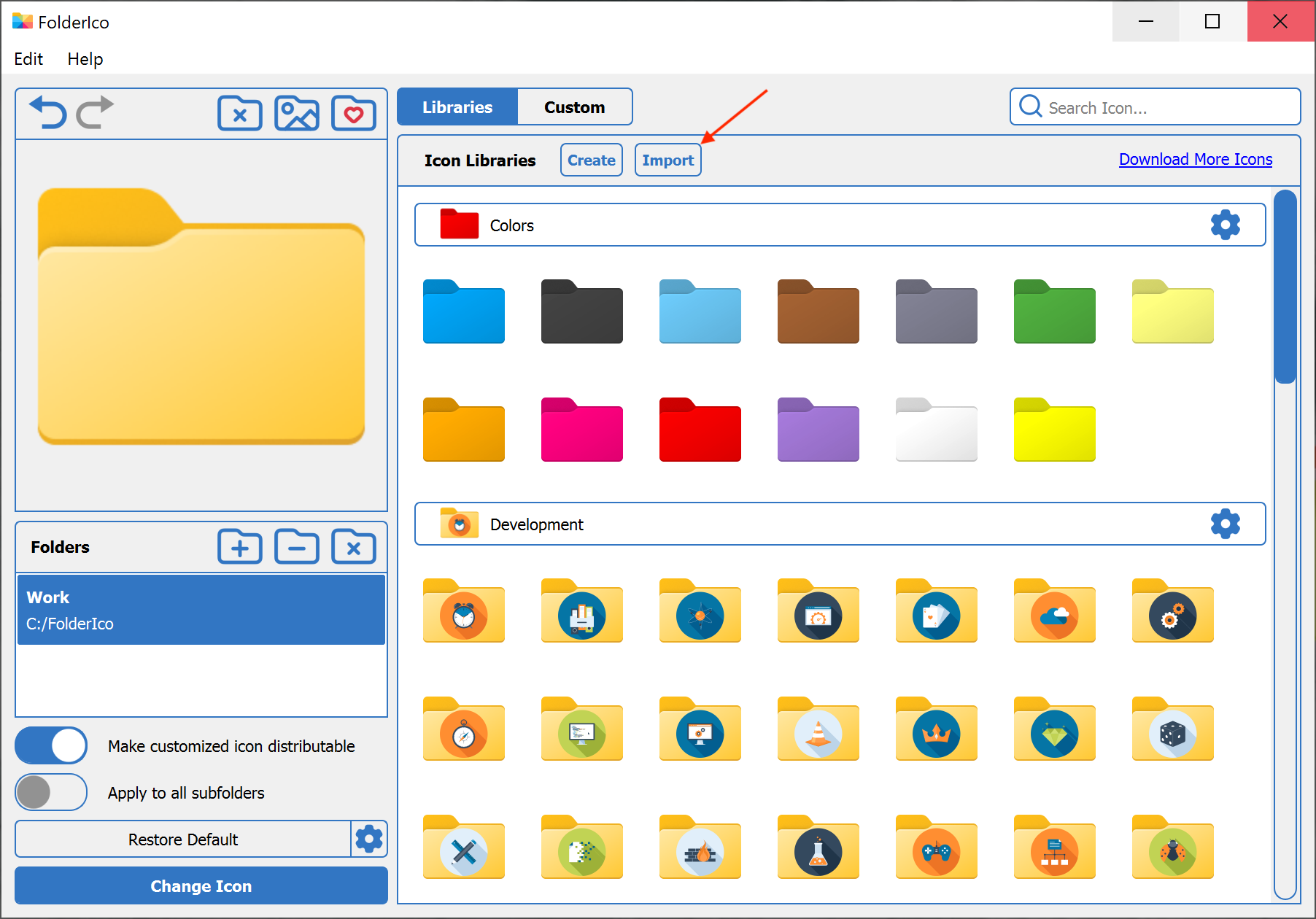
Browse for the library file (zip) and open it. The program will load the library and display its contents:
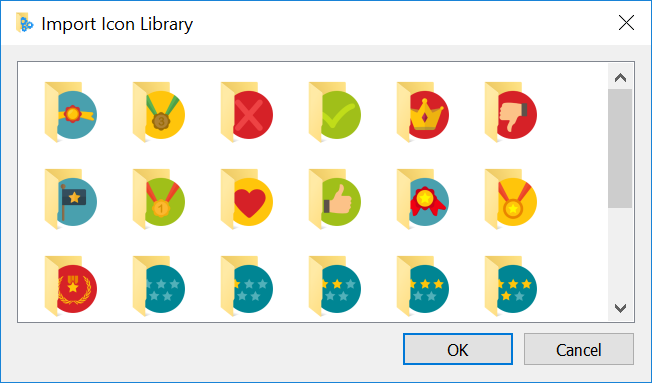
Here, you can review icons this library has. If this is what you want, click the OK button to finally import the library to FolderIco.
The imported library is displayed in the list of icon libraries. Now, you can assign icons from this library to any folders of your system.
Remove, rename, or export an icon library
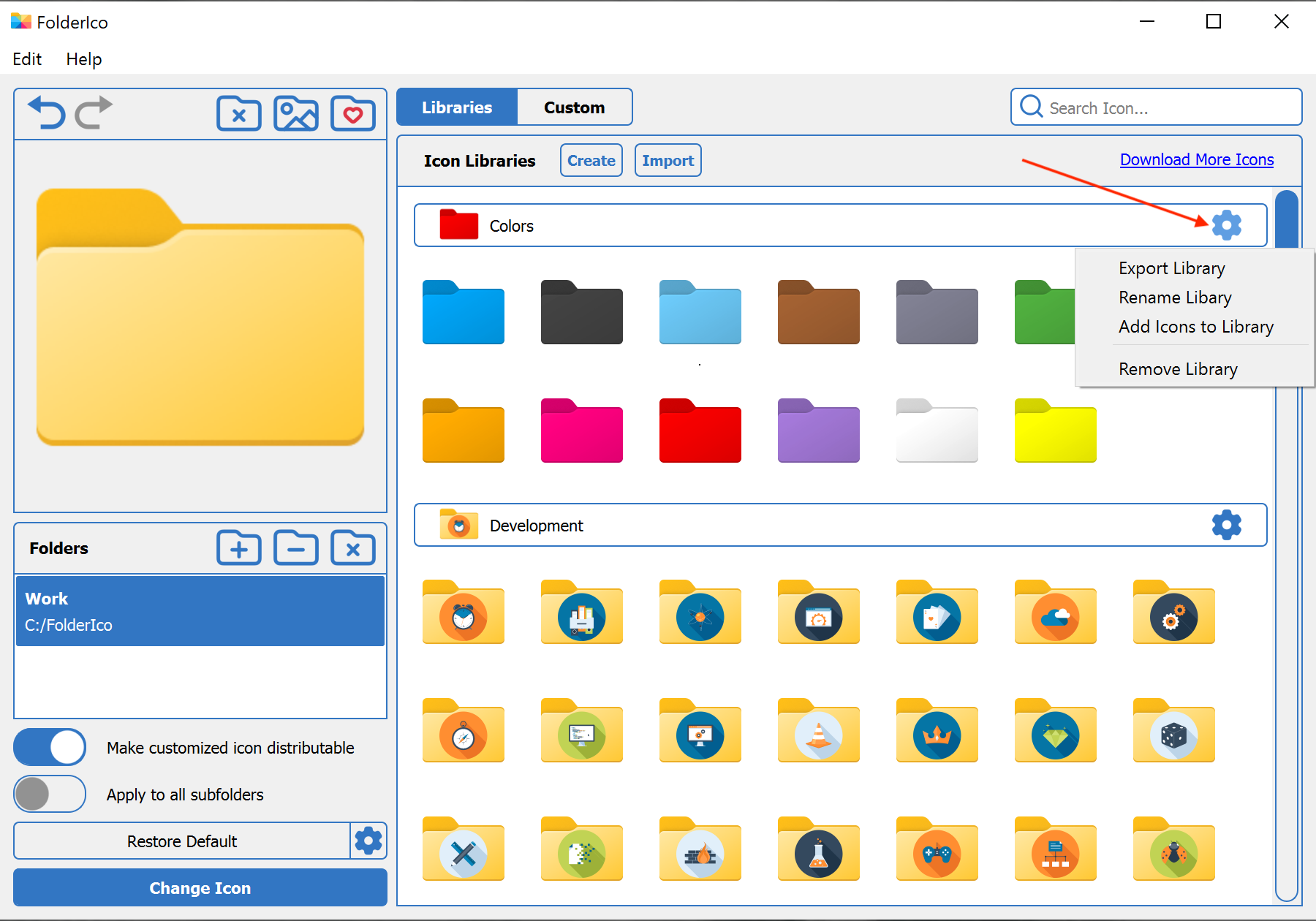
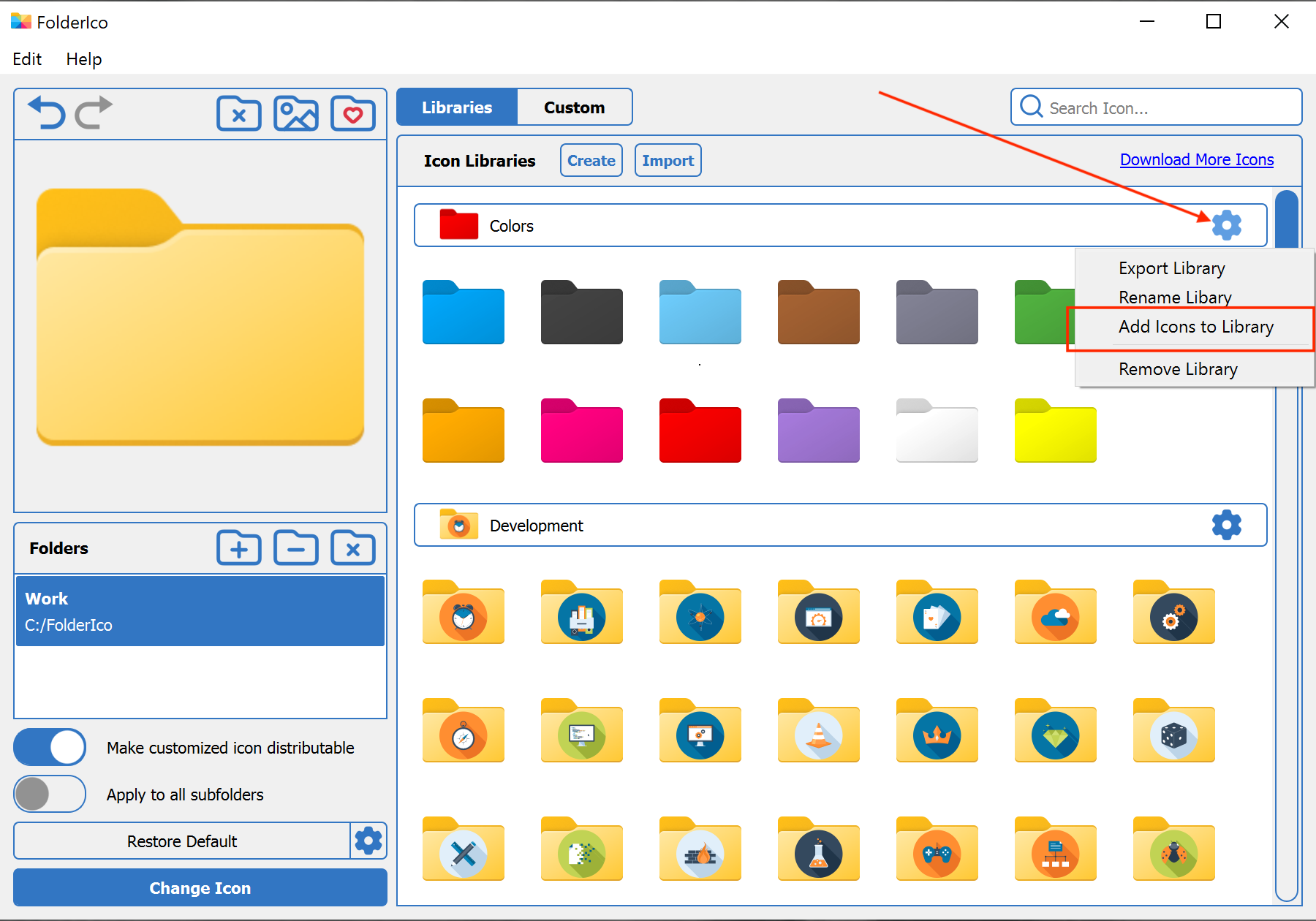
To remove, rename, or export an icon library from FolderIco, click the gear icon and select the appropriate command.
The library is exported as a simple zip file with icons inside, so you can easily share it with any other FolderIco user.
Create a new library in FolderIco
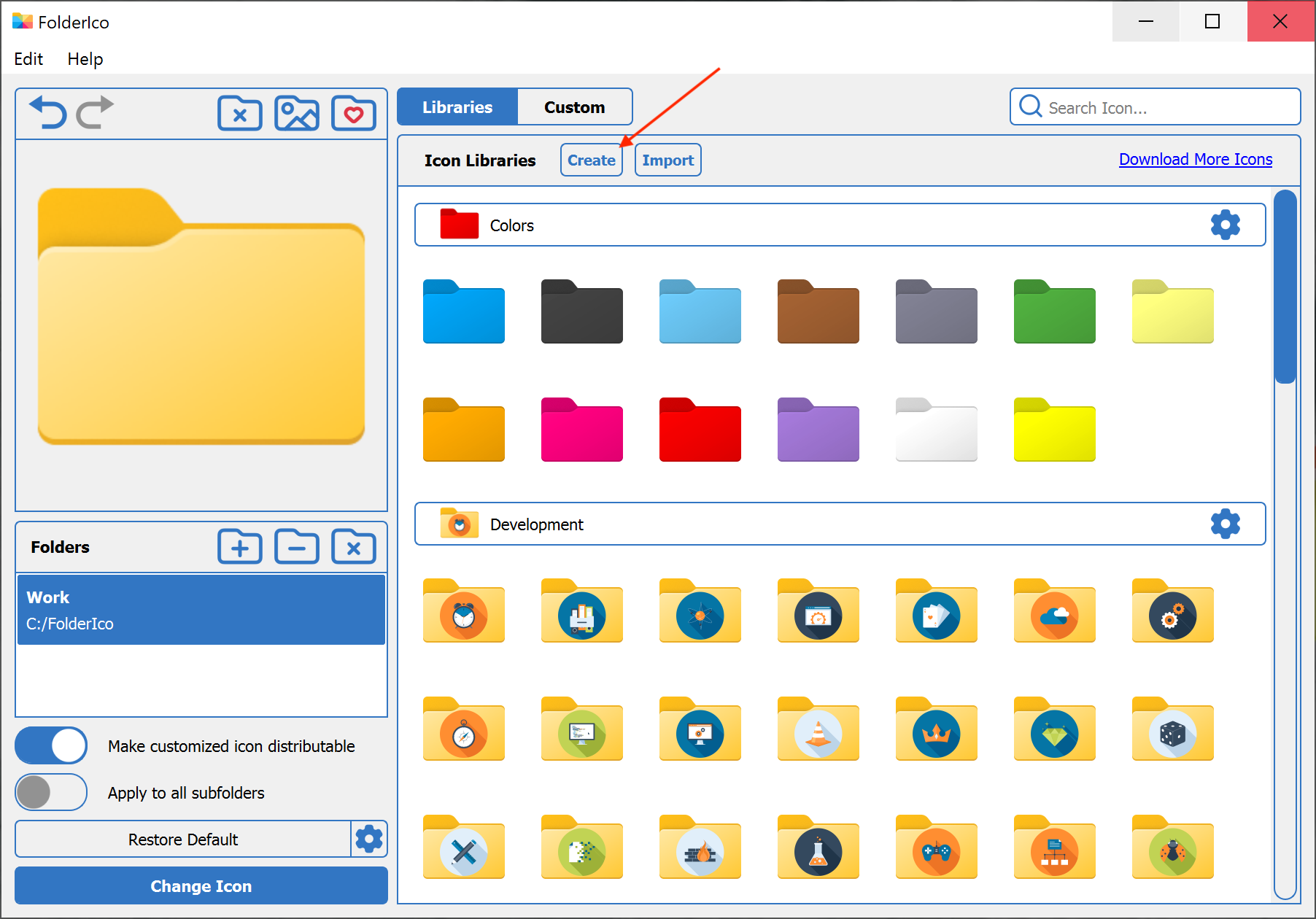
To create your own library, click the Create button in the header section.
The program asks you to provide a name for your new library. Enter the name and click OK. Then, you should see an empty library.
Add icons to the library
Click the gear icon and select the Add Icons to Library command. This will open the file selection dialog. Browse for icons you want to add to your library, then confirm your selection.
FolderIco supports multiple image formats and will automatically convert them into ICO format.
Remove and rename icons
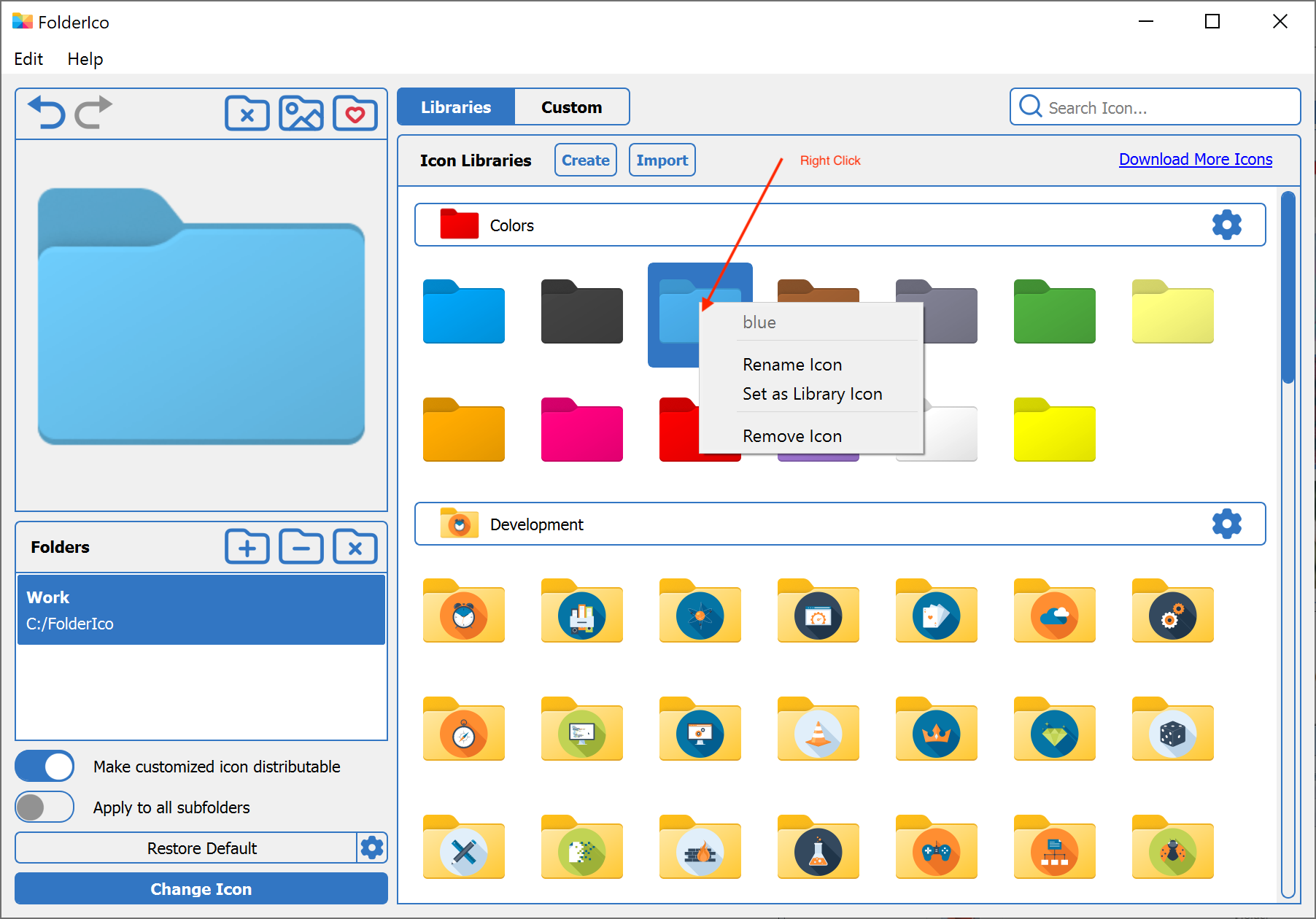
To remove an unnecessary icon, right-click it and select Remove Icon.
In the same way, you can rename the icon or assign any icon as the library cover icon.