Large collections of folders can be difficult to scan when every folder uses the same default Windows icon. FolderIco helps solve this by creating visual folder icons from images stored inside your folders.
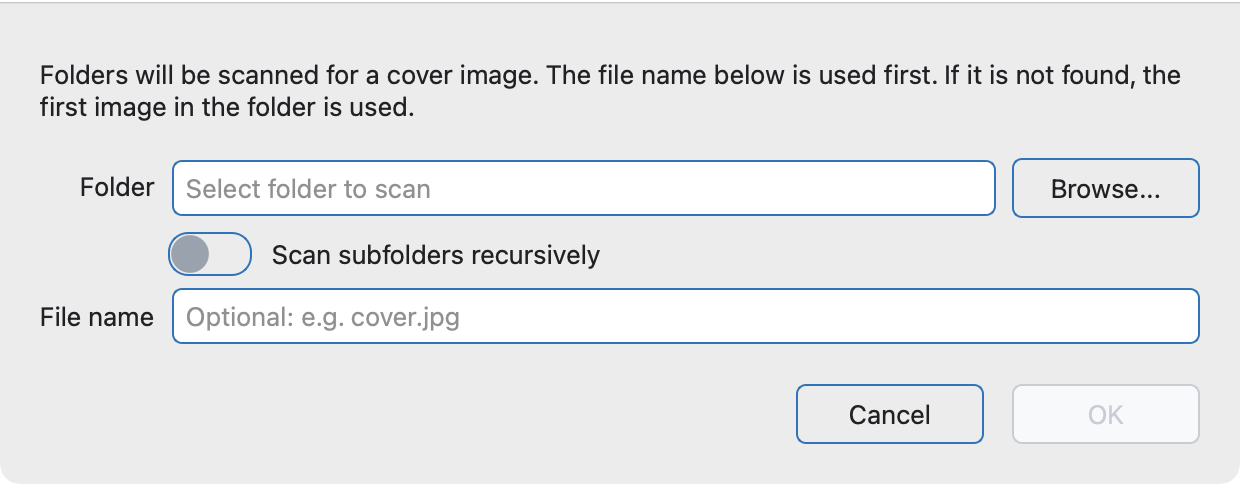
The Thumbnail Generator scans a selected folder and looks for a chosen image file name. If that file is missing, FolderIco can skip the folder or use its first image instead. The image is then added to the generated folder icon as a Cover, Sticker, or Icon.
What the Thumbnail Generator does
The FolderIco Thumbnail Generator creates folder icons automatically. Instead of manually customizing each folder, you select a folder to scan and let FolderIco find a suitable image for every generated icon.
This is especially useful when folders already contain representative images, such as album covers, product photos, screenshots, artwork, or a file named cover.jpg.
FolderIco creates a folder icon for each processed folder and uses the image as a cover, sticker, or icon.
Open the Thumbnail Generator
In FolderIco, open the generator from the main menu:
- Open FolderIco.
- Go to Tools -> Thumbnail Generator.
- Choose the folder you want to scan.
- Enter the image file name you want FolderIco to find.
- Choose whether to include subfolders.
- Choose whether to skip folders or use the first image when the named file is missing.
- Select Cover, Sticker, or Icon.
- Click Generate to start the process.
cover.jpg, folder.jpg, or thumbnail.png when you want full control over which image becomes the folder cover.
Choose the folder to scan
The Folder area defines the starting point for thumbnail generation. Click Change and select the folder that contains the folders or images you want FolderIco to process.
The selected path and folder name are shown in the dialog so you can confirm the target before generating icons.
Set a preferred image file name
In the File name field, enter the image name FolderIco should look for in each scanned folder.
cover.jpg
For example, if you enter cover.jpg, FolderIco will try to use cover.jpg for each folder. If that file is missing, the If file is missing setting determines whether FolderIco skips the folder or uses the first image found.
| Folder contents | Preferred file name | If file is missing | Result |
|---|---|---|---|
cover.jpg, photo1.jpg, photo2.jpg |
cover.jpg |
Either option | Uses cover.jpg |
photo1.jpg, photo2.jpg |
cover.jpg |
Use first image | Uses photo1.jpg |
poster.png, info.txt |
cover.jpg |
Skip folder | Leaves the folder unchanged |
Include subfolders
Enable Include subfolders when you want FolderIco to process folders inside the selected folder as well. This is useful for large libraries where every subfolder represents an album, project, product, or category.
For example, you can select a main Photos folder and let FolderIco generate thumbnails for each album folder inside it.
Choose what happens when the file is missing
The If file is missing setting controls folders that do not contain the file name you entered:
- Skip folder leaves that folder unchanged.
- Use first image selects the first image FolderIco finds in that folder.
Use Skip folder when only specifically named images should be applied. Use Use first image when every folder should get a visual result whenever an image is available.
Choose how to use the image
The Use image as setting determines the role the image plays in the generated folder icon:
- Cover fits the image inside the folder shape.
- Sticker places the image as a visual sticker on the folder.
- Icon applies the image using FolderIco's Icon layout.
Covers work well for photos, albums, and product artwork. Stickers are useful for logos, symbols, and simple graphics. Choose Icon when the image should be applied using the Icon layout.
Recommended folder structure
For the most predictable results, place one clearly representative image inside each folder and give it the same name everywhere.
Photos
|-- Summer Vacation
|   |-- cover.jpg
|   |-- beach.jpg
|   `-- hotel.jpg
|-- Family
|   |-- cover.jpg
|   `-- portrait.jpg
`-- Products
    |-- cover.jpg
    `-- details.jpg
Then open Tools -> Thumbnail Generator, select the main folder, enter cover.jpg as the file name, enable Include subfolders, choose an image mode, and click Generate.
Thumbnail Generator settings
| Setting | What it does | When to use it |
|---|---|---|
| Folder | Selects the folder that FolderIco will scan. | Use it to choose your photo library, project folder, product folder, or media collection. |
| Change | Opens a folder selection dialog. | Use it when you need to pick the target folder visually. |
| Include subfolders | Includes folders inside the selected folder. | Use it for album libraries, nested projects, product catalogs, and large folder trees. |
| File name | Sets the preferred image file name to use first. | Use values like cover.jpg, folder.jpg, or thumbnail.png for consistent results. |
| Skip folder | Leaves a folder unchanged when the named file is missing. | Use it when only folders with a specifically named image should be processed. |
| Use first image | Falls back to the first image found when the named file is missing. | Use it to generate a result for as many folders as possible. |
| Cover / Sticker / Icon | Chooses how FolderIco applies each image. | Use Cover for fitted artwork, Sticker for an overlay, or Icon for FolderIco's Icon layout. |
Folder thumbnails vs manual folder icon changes
Manual folder customization works well when you only need to change one or two folders. The Thumbnail Generator is better when many folders already contain images and you want to create previews faster.
| Task | Manual customization | Thumbnail Generator |
|---|---|---|
| Customize one folder | Good | Good |
| Create thumbnails for many folders | Slow | Fast |
| Use image files already inside folders | Manual selection | Automatic scanning |
| Process subfolders | One by one | Recursive scan |
Best use cases for folder thumbnail generation
- Photo album folders where each album has a cover image
- Movie or music folders with poster or cover artwork
- Product catalog folders with product photos
- Design asset folders with preview images
- Client project folders with logos or screenshots
- Download or archive folders that need quick visual identification
A folder thumbnail system makes Windows Explorer easier to scan because each folder gets a visual clue instead of looking like every other default folder.
Tips for better thumbnails
- Use clear, high-contrast images that are easy to recognize at small sizes.
- Use the same preferred file name across folders, such as
cover.jpg. - Remove temporary or unrelated images if you rely on the first image fallback.
- Enable Include subfolders only when the folder tree is organized and ready to process.
Frequently asked questions
Quick answers about FolderIco Thumbnail Generator.
Open FolderIco, choose Tools -> Thumbnail Generator, select the folder to scan, enter an image file name, choose the missing-file behavior and image mode, then click Generate.
FolderIco first looks for the file name you enter, such as cover.jpg. If it is missing, choose Skip folder or Use first image.
No. A consistent file name gives you more control, but FolderIco can use the first image found when the named file is missing.
Yes. Enable Include subfolders to process folders inside the selected folder.
Thumbnail generation works best for photo albums, media collections, design assets, product folders, client folders, and folders that contain a clear representative image.
FolderIco can use each found image in the generated folder icon as a Cover, Sticker, or Icon.