Windows 11 and Windows 10 do not include a built-in folder color setting. To change a folder color, Windows has to use a colored folder icon. FolderIco makes this faster by adding color choices directly to the File Explorer right-click menu, with unlimited folder color changes in the free version.
Can Windows change folder colors by default?
Not directly. Windows lets you manually change a folder icon, but it does not include a built-in “change folder color” option in File Explorer.
That makes the manual workaround slow: you need to find or create an icon file, open folder properties, choose a custom icon, and repeat the process for every folder. FolderIco is designed for the common task people actually want: quickly color-code folders for better organization.
Can you change folder color without changing the icon?
In Windows, folder color is handled through folder icons. A colored folder is still a custom folder icon, but FolderIco keeps the familiar folder shape and changes only the visual style.
This means you can use color labels without turning folders into unrelated images or losing the standard folder look that makes them easy to recognize.
Method: color-code folders from the right-click menu
The fastest way is to apply colors directly from the Explorer context menu.
- Download and install FolderIco.
- Open File Explorer.
- Right-click the folder you want to color-code.
- Choose FolderIco from the menu.
- Select a folder color and apply it.
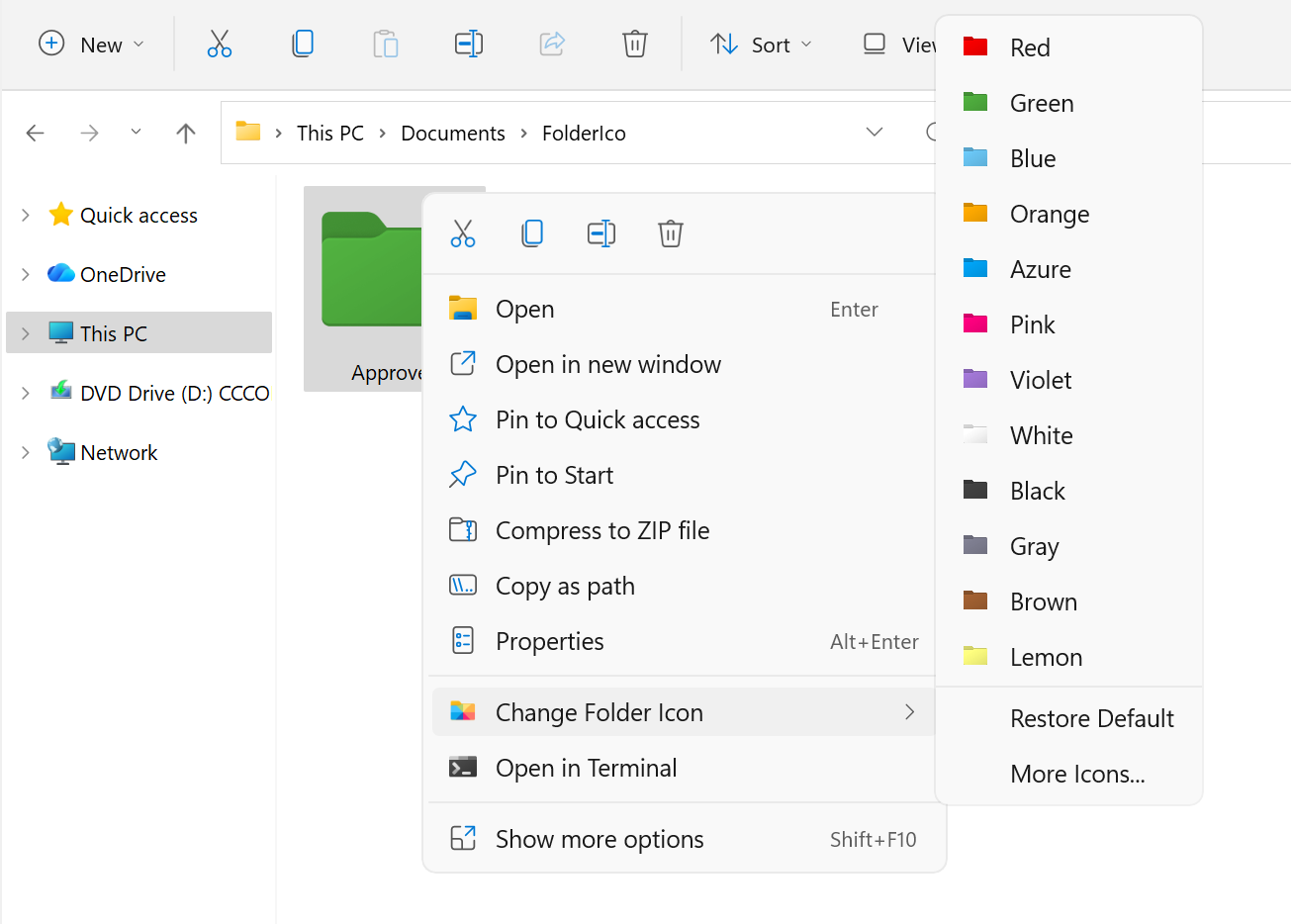
FolderIco adds folder color options to the right-click menu, so you do not have to create or convert icon files manually.
Use color labels to organize projects and priorities
Colored folders are useful when you want to recognize important items at a glance instead of reading every folder name. You can create a simple visual system for work, personal files, projects, clients, or file types.
- Red for urgent folders or files that need action
- Green for completed work or approved files
- Blue for personal folders or reference materials
- Yellow for folders you use every day
- Violet for active projects or creative work
Because the free version includes unlimited color changes, you can label as many folders as you need.

Create custom folder colors and styles
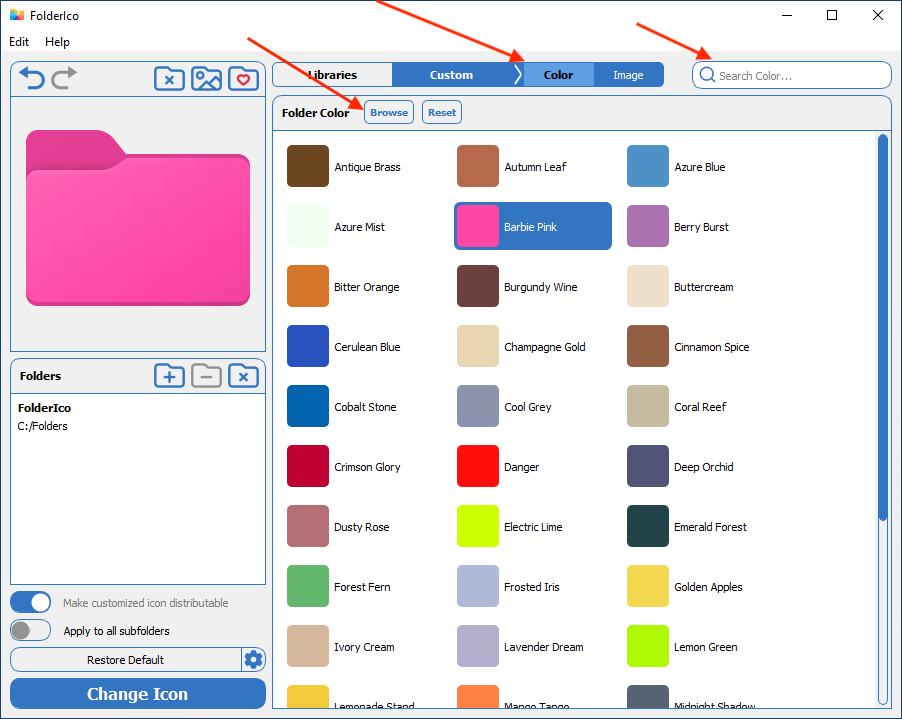
Predefined colors are the quickest option, but you can also create a more personal folder style. Open the full customization view and select Custom to choose more colors, build your own visual style, and reuse it later.
For deeper customization, you can combine colors with icons, stickers, covers, or image-based folder designs. If you want to use a photo, logo, or PNG as a folder preview, see how to create custom folder thumbnails.
Windows manual workaround vs FolderIco
Windows can change folder icons manually, but it does not support folder colors directly. For everyday visual organization, FolderIco is faster because it turns color-coding into a right-click action.
| Feature | Windows default | FolderIco Recommended |
|---|---|---|
| Change folder color | Not supported directly | Right-click, instant |
| Use predefined folder colors | Not supported | Built-in color options |
| Create custom folder styles | Manual icon workaround | Easy and flexible |
| Customize many folders | Slow and repetitive | Fast for daily use |
| Free folder color changes | Not available | Unlimited in the free version |
If your goal is to color-code folders in Windows, FolderIco avoids the manual icon workflow and gives you a simpler way to organize files visually.
Frequently asked questions
Quick answers about changing folder colors in Windows 11 and Windows 10.
Windows does not include a built-in folder color option. To colorize folders, install FolderIco, right-click a folder in File Explorer, choose FolderIco, and select a color.
The free version includes unlimited folder color changes.
Not directly. Windows lets you manually change a folder icon, but it does not provide a simple folder color setting.
To change folder color, Windows uses a colored folder icon. FolderIco makes this much faster by adding color choices to the right-click menu.
Windows supports custom folder icons, but it does not include a direct setting for folder colors. Color customization works by replacing the standard yellow folder icon with a colored version.
In Windows, folder color changes are applied through folder icons. FolderIco keeps the standard folder shape and changes the color or visual style, so the folder still looks like a folder.
Yes. FolderIco works from Windows File Explorer and lets you apply folder colors from the right-click menu.
Yes. In addition to predefined colors, you can create custom folder styles for a more personalized look.
This is useful when you want a consistent visual system for projects, categories, or workflows.
No, folder colors do not noticeably affect PC performance. Windows handles folder icon display efficiently, especially when optimized icon resources are used.
Yes. Many people use colors to mark urgent folders, finished work, personal files, active projects, or folders they need to find quickly.